Converting PDF to Word: A Complete Tutorial for Perfect Formatting
Published on June 04, 2026
PDF to Word Converter Online – Convert PDF Files into Editable DOCX Documents
Why Convert PDF to Word?
PDF is one of the most reliable formats for sharing and distributing documents. It keeps the layout fixed, protects formatting, and ensures that the file looks the same on almost every device. This is why PDFs are commonly used for contracts, resumes, reports, invoices, academic papers, eBooks, manuals, forms, certificates, and official documents. However, PDF is not always the best format when you need to edit the content.
Sometimes you may need to revise a contract, update a CV, reuse text from a report, correct a spelling mistake, edit a table, change a date, add new paragraphs, or redesign a document. If you do not have the original editable file, editing the PDF directly can be difficult. In this situation, converting the PDF to a Microsoft Word document is the best solution.
A PDF to Word Converter turns your PDF file into an editable DOCX document. After conversion, you can open the file in Microsoft Word, Google Docs, WPS Office, LibreOffice, or any standard word processor. You can edit text, adjust tables, change fonts, update headings, modify layouts, and reuse content easily. This makes PDF to Word conversion one of the most useful tools for students, professionals, businesses, teachers, freelancers, legal users, and everyday document users.
The Challenges of PDF to Word Conversion
PDF to Word conversion may look simple, but technically it is a complex process. A PDF file stores content differently from a Word document. In a Word file, text flows naturally from line to line and paragraph to paragraph. It understands margins, columns, spacing, styles, headings, lists, and tables. A PDF file, on the other hand, stores text and objects based on fixed page positions.
This means that text in a PDF is often placed using physical coordinates on the page. Images, shapes, lines, tables, and text blocks are fixed in specific locations. When a basic converter tries to turn these fixed positions into an editable Word file, it may create broken layouts, scattered text boxes, missing fonts, wrong spacing, misaligned tables, or uneven paragraphs.
A high-quality PDF to Word converter online should do more than copy text. It should rebuild the document layout intelligently. It should recognize headings, paragraphs, tables, bullet lists, columns, images, and page structure. This helps create a Word document that is not only editable but also close to the original PDF design.
Advanced Layout Reconstruction
Our premium PDF to Word conversion tool uses advanced layout reconstruction methods to understand the structure of the PDF file. Instead of simply placing random text boxes in a Word document, the tool analyzes the page and detects meaningful content blocks. It can identify paragraphs, headings, tables, lists, images, and sections.
This helps produce a cleaner DOCX file that is easier to edit. The goal is to preserve the original look of the PDF while making the content flexible enough for editing. Whether your PDF contains simple text, business reports, invoices, academic content, tables, or professional layouts, the converter works to maintain formatting accuracy.
Step-by-Step PDF to Word Conversion Process
Converting your PDF documents into editable Word files is simple and fast. You do not need technical knowledge or professional software.
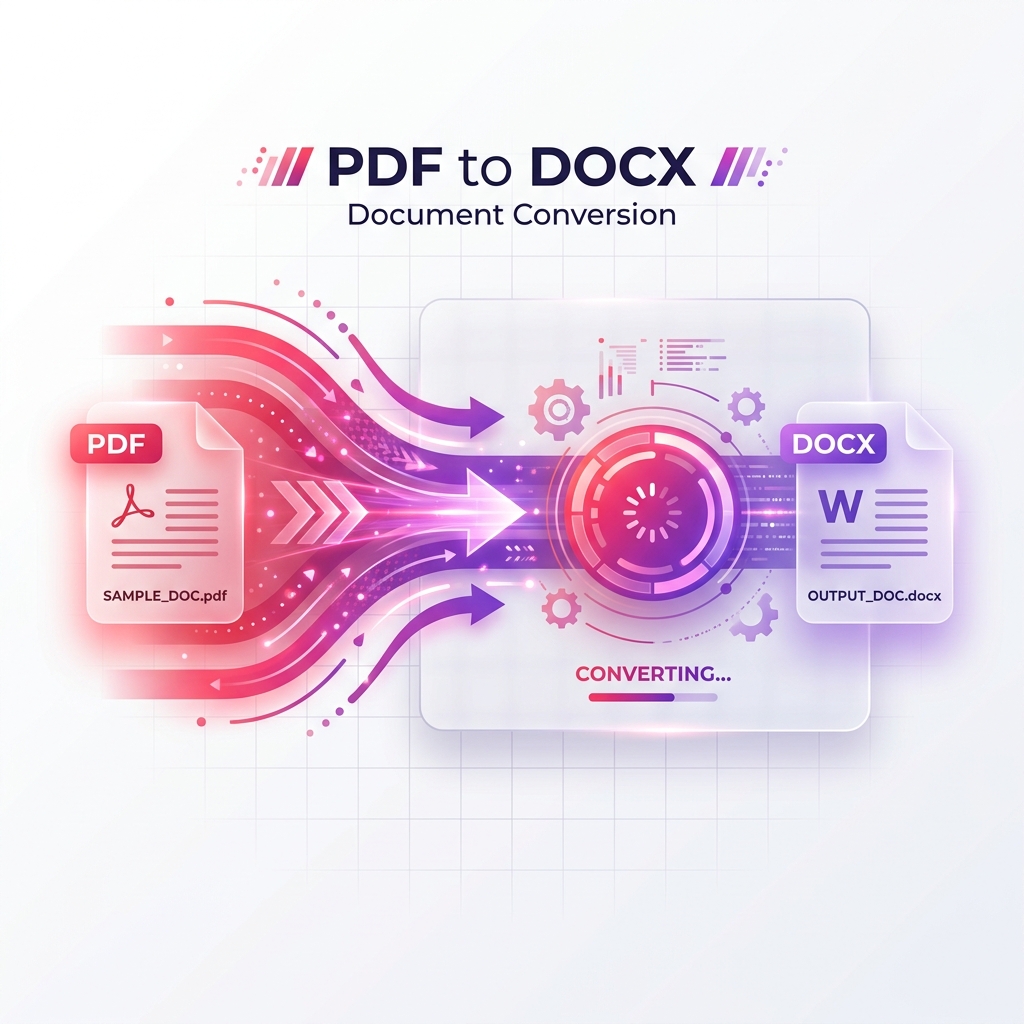
First, go to the PDF to Word Converter page. Upload your PDF file from your device. After uploading, click the Process Files button to start the conversion. The tool will analyze the PDF, rebuild the layout, and convert it into a Microsoft Word document. Once the process is complete, download your fully editable DOCX file.
After downloading, you can open the file in Microsoft Word or any compatible word processor and start editing immediately.
Using OCR for Scanned PDFs
Not all PDFs contain real selectable text. Some PDFs are created by scanning physical paper documents. In these files, each page is stored as a flat image. Even though you can see text on the page, the computer cannot edit it as text because it is part of an image.
A standard PDF to Word converter may not properly convert scanned documents. It may output images inside Word instead of editable text, or it may fail to extract meaningful content. To convert scanned PDFs into editable Word documents, you need OCR, also known as Optical Character Recognition.
OCR analyzes the shapes of letters, numbers, and words inside the scanned image. It then converts them into digital editable text. This is useful for scanned contracts, old documents, handwritten notes, printed forms, certificates, books, bills, receipts, legal papers, and academic material.
If your PDF was scanned from paper, using OCR can help create a Word document where the text can be selected, copied, edited, and reformatted.
Benefits of Converting PDF to Word
Converting PDF to Word gives users more control over their documents. A PDF is great for viewing and sharing, but Word is better for editing. Once converted, you can make changes without recreating the document from scratch.
You can update text, fix mistakes, add new sections, remove unwanted content, change headings, edit tables, replace images, adjust spacing, and customize formatting. This saves time and effort, especially when working with long documents.
PDF to Word conversion is useful when you need to reuse existing content. Instead of typing everything again manually, you can convert the PDF and edit the content directly.
Useful for Students
Students often receive notes, assignments, research papers, project files, and study materials in PDF format. Sometimes they need to extract text, edit content, update project reports, or reuse sections for academic work. A PDF to Word converter helps students turn fixed PDF content into editable Word documents.
This is useful for assignments, thesis work, reports, presentations, study notes, application forms, and academic submissions. Students can save time by converting PDFs instead of manually retyping long content.
Useful for Teachers and Educational Users
Teachers and educational institutions often work with worksheets, exam papers, lesson plans, notes, forms, and academic documents. If a teacher has an old PDF worksheet and wants to update questions, correct mistakes, or add new content, converting the PDF to Word makes editing easier.
Schools, colleges, and coaching centers can use PDF to Word tools to update study materials, exam documents, forms, and notices without recreating them from zero.
Useful for Office Work
Office users regularly handle reports, proposals, HR documents, meeting notes, policies, invoices, forms, and official letters in PDF format. When these documents need updates, editing the PDF directly can be difficult. A PDF to Word converter helps office users create editable versions quickly.
This improves workflow and saves time. Employees can revise documents, update company details, change dates, correct tables, and prepare new versions more easily.
Useful for Business Owners and Freelancers
Business owners and freelancers often work with proposals, contracts, invoices, quotations, catalogs, service documents, and client reports. If they receive a PDF that needs changes, converting it to Word allows them to edit the content professionally.
A PDF to Word converter is especially useful for freelancers, agencies, consultants, designers, writers, marketers, accountants, and service providers. It helps them reuse templates, update client documents, and create revised versions quickly.
Useful for Legal Documents
Legal documents such as contracts, agreements, affidavits, policies, terms and conditions, and case files often need revisions. If the original Word version is not available, converting the PDF to Word can help legal professionals edit clauses, update names, add sections, or review content.
However, legal documents should be checked carefully after conversion to ensure that formatting, numbering, clauses, and tables are accurate. A high-quality PDF to DOCX converter helps reduce manual correction work.
Useful for Resumes and CV Updates
Many job seekers save resumes in PDF format for sharing. Later, they may need to update experience, skills, contact details, education, or design. If the original Word file is missing, a PDF to Word converter can help recover an editable version.
This allows users to update their CV quickly and export it again as PDF for professional sharing.
Convert PDF Tables to Word
Tables are one of the most difficult parts of PDF to Word conversion. A basic converter may break table rows, columns, borders, or alignment. A better PDF to Word tool tries to detect table structures and recreate them in Word format.
This is useful for invoices, financial reports, academic tables, product lists, data sheets, schedules, forms, and business documents. Editable tables allow users to update numbers, text, rows, and columns easily.
Convert PDF Images and Layouts
Many PDF files contain images, logos, charts, signatures, diagrams, and design elements. A good PDF to Word converter should preserve these visual elements as much as possible. This helps keep the converted document close to the original appearance.
Users can then replace images, resize them, move them, or edit the surrounding text inside Word.
Online PDF to Word Converter
An online PDF to Word converter is convenient because it works directly in the browser. You do not need to install Microsoft Word, Adobe Acrobat, plugins, extensions, or heavy PDF software just to convert a file. You can upload your PDF, process it online, and download an editable Word document.
This is helpful for users who need quick conversion from a mobile phone, tablet, laptop, or desktop computer. A browser-based tool saves storage space and makes document conversion simple.
Mobile-Friendly PDF to Word Conversion
Many users manage documents from smartphones. A mobile-friendly PDF to Word tool allows users to upload files from their phone, convert them into DOCX, and download the editable document. This is useful for students, job seekers, freelancers, office workers, and users who receive PDF files through email, WhatsApp, Telegram, or cloud storage.
A responsive tool should be easy to use on small screens and should provide a smooth upload, conversion, and download experience.
Best Practices After Conversion
After converting a PDF to Word, it is always a good idea to review the output document. Check headings, paragraphs, tables, spacing, fonts, images, page breaks, and alignment. Since PDF and Word formats work differently, small adjustments may sometimes be needed.
For important documents like contracts, resumes, reports, or academic submissions, review the converted Word file carefully before sharing or printing.
SEO Keywords for PDF to Word Tool
For SEO, a PDF to Word converter page should include natural and useful keywords that match user search intent. Important keywords include PDF to Word converter, convert PDF to Word, PDF to DOCX, online PDF to Word tool, free PDF to Word converter, editable Word document, convert scanned PDF to Word, OCR PDF to Word, PDF text extraction, PDF document converter, and PDF Master Pro PDF to Word.
These keywords should be used naturally in the title, headings, meta description, and content. The content should remain helpful and easy to read instead of repeating keywords unnaturally.
Conclusion
A PDF to Word Converter is an essential tool for anyone who needs to edit, update, or reuse content from a PDF file. PDF is perfect for sharing and preserving formatting, but Word is better for editing. By converting PDF to DOCX, users can modify text, adjust tables, edit layouts, replace images, and create updated versions without starting from scratch.
PDF Master Pro makes the process simple. Upload your PDF file, click Process Files, and download your editable Microsoft Word document. For scanned PDFs, OCR technology can help convert image-based text into editable digital content. Whether you are editing a contract, updating a CV, revising a report, preparing academic work, or reusing text from a document, this PDF to Word converter provides a fast and convenient solution.
Ready to Process Your PDFs?
Use our high-speed, secure, and 100% free online PDF tools to convert, merge, compress, and edit your documents in seconds.
Explore All PDF Tools