How to Convert Word Documents to PDF Online
Published on June 04, 2026
Word to PDF Converter Online – Convert DOC and DOCX Files to PDF
When sharing documents created in Microsoft Word, such as DOC or DOCX files, there is always a major risk: the document may look perfect on your screen, but it can appear completely different when opened on another device. Fonts may change, spacing may shift, images may move, margins may break, tables may look uneven, and the overall layout may become messy. This usually happens because different devices, operating systems, office versions, and font packages handle Word files differently. To avoid these formatting problems, converting Word documents to PDF is one of the best and most reliable solutions.
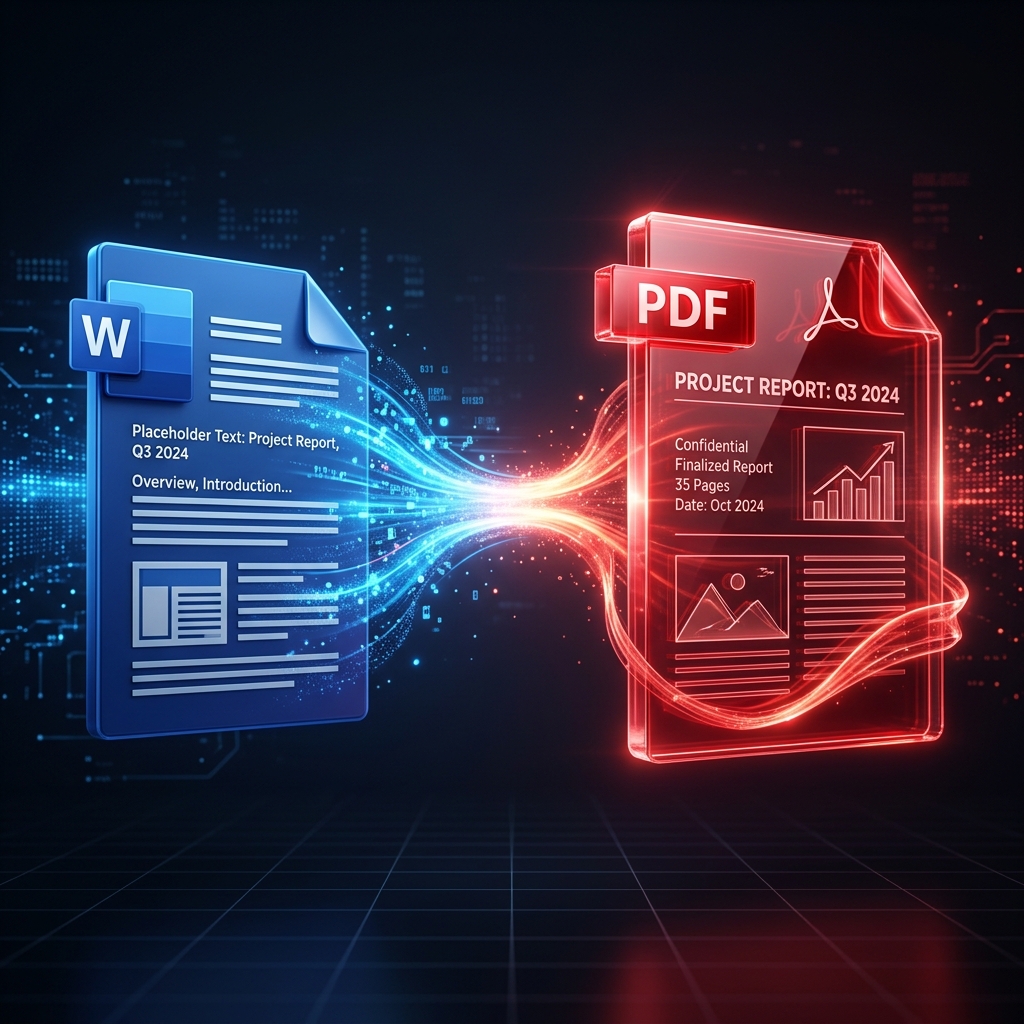
A Word to PDF Converter helps you turn your Microsoft Word documents into clean, professional, and easy-to-share PDF files. PDF format preserves your content exactly as intended. Once your Word file is converted into PDF, your fonts, images, alignment, spacing, margins, headers, footers, tables, and page layout remain fixed. This makes PDF the perfect format for resumes, assignments, reports, contracts, invoices, eBooks, letters, business proposals, academic papers, and official documents.
Why Convert Word to PDF?
Converting Word to PDF is important because PDF files are more stable, professional, and widely accepted. A Word document can change depending on the software or device used to open it, but a PDF file keeps the same appearance everywhere. Whether the receiver opens your file on a phone, tablet, laptop, desktop, browser, or PDF reader app, the document layout remains consistent.
Formatting Lock
The biggest advantage of converting Word to PDF is formatting protection. PDF locks your fonts, line spacing, image positions, margins, page breaks, tables, headers, footers, and overall layout. This means your document will look the same on every device. If you have spent time designing a resume, report, invoice, proposal, or academic paper, converting it to PDF helps protect your hard work from unwanted layout changes.
Better Readability
PDF files can be opened on almost any device without requiring Microsoft Word. Most smartphones, computers, browsers, and email apps support PDF viewing by default. This makes PDF a convenient format for sharing documents with anyone. The receiver does not need to install Word or worry about missing fonts. They can simply open the PDF and read it easily.
Professional Appearance
Sending a PDF looks more professional than sending an editable Word file. PDFs are commonly used for resumes, business documents, invoices, contracts, reports, academic submissions, certificates, manuals, and official forms. A PDF document gives a polished and final look, making it suitable for professional communication.
Convert Word to PDF on PDF Master Pro
Using the Word to PDF Converter on PDF Master Pro is simple and fast. You do not need technical knowledge or complicated software. The tool is designed for students, office users, teachers, freelancers, business owners, job seekers, and everyday document users.
First, upload your .doc or .docx file to the Word to PDF tool. After uploading, click the Convert to PDF button. The system will process your Word document and convert it into a PDF while keeping the layout, spacing, fonts, images, and formatting as accurate as possible. Once the conversion is complete, download your new PDF document and use it for sharing, printing, uploading, or storing.
Best Online Word to PDF Converter
An online Word to PDF converter is useful because it works directly in your browser. You do not need to install heavy software or buy expensive PDF editing tools. You can convert Word documents to PDF from your mobile phone, tablet, laptop, or desktop computer. This makes the tool convenient for users who need quick document conversion at any time.
Whether you are at home, in the office, in college, or traveling, you can upload your Word file and convert it into PDF within seconds. A browser-based DOC to PDF converter saves time and makes document sharing easier.
Convert DOC to PDF
Older Microsoft Word files often use the .doc format. These files may not always open correctly in newer office versions or different document editors. By converting DOC to PDF, you can make sure the document looks clean and stable across all devices. This is helpful for old reports, office letters, project files, academic documents, business records, and archived documents.
A DOC to PDF converter keeps the document readable and easier to share. Instead of worrying about compatibility issues, users can convert the file into PDF and send it confidently.
Convert DOCX to PDF
DOCX is the modern Microsoft Word format, but even DOCX files can face layout issues when opened on different systems. Missing fonts, different Word versions, and device settings can affect the appearance of the file. A DOCX to PDF converter solves this problem by creating a fixed-layout PDF document.
This is useful for resumes, cover letters, business proposals, invoices, contracts, reports, study notes, and official files. Once converted, the PDF version keeps your document presentation consistent.
Useful for Students
Students often create assignments, project reports, research papers, notes, thesis files, and application documents in Microsoft Word. Many schools, colleges, and universities prefer PDF submissions because PDFs preserve formatting and are easier to review. If a student submits a Word file, the teacher may see a different layout due to font or spacing issues. Converting Word to PDF helps avoid these problems.
A Word to PDF tool is also useful for online exams, college portals, scholarship forms, project submissions, and academic documentation. Students can prepare their work in Word, convert it to PDF, and submit a professional-looking final file.
Useful for Job Seekers
Job seekers should always send resumes and cover letters in PDF format unless the employer specifically asks for a Word file. A resume created in Word may look different on the recruiter’s computer if the fonts or formatting are not supported. This can make the resume appear unprofessional.
Converting a resume from Word to PDF protects the design, spacing, bullet points, headings, and contact information. A PDF resume looks clean, professional, and ready for review. It also reduces the chance of accidental editing.
Useful for Office Work
Office users work with many types of documents, including reports, meeting notes, proposals, letters, policies, HR forms, financial records, invoices, and presentations. Sharing Word files can sometimes create formatting issues, especially when documents move between different departments, clients, or software versions.
A Word to PDF converter helps office users create final versions of documents that are easy to share and review. PDF files are also easier to print, archive, and attach to emails. This improves workflow and document management.
Useful for Business Owners and Freelancers
Business owners and freelancers often send proposals, invoices, quotations, contracts, service documents, company profiles, and project reports to clients. These documents should look professional and consistent. Sending a Word file may allow the receiver to edit the content or see broken formatting. Sending a PDF gives a polished and final presentation.
A Word to PDF converter helps freelancers, agencies, consultants, designers, writers, accountants, and small business owners create professional documents quickly. It also helps build trust with clients because PDF files look more official and organized.
Useful for Legal and Official Documents
Legal and official documents need to maintain their original format. Contracts, agreements, affidavits, terms and conditions, declarations, policies, compliance documents, and official letters should not change when opened on another device. A small formatting change can create confusion in legal or official paperwork.
Converting Word to PDF helps lock the document structure and makes it suitable for signing, printing, emailing, or uploading. PDF is widely accepted for legal, business, and government documentation.
Better for Printing
PDF files are better for printing because they preserve page layout, margins, fonts, and spacing. A Word file may print differently depending on printer settings, Word version, or page setup. By converting Word to PDF before printing, users can make sure the printed document looks the same as the digital version.
This is useful for resumes, assignments, reports, certificates, invoices, manuals, application forms, and business documents.
Easy Document Sharing
PDF is one of the easiest formats for sharing documents. You can send PDF files through email, WhatsApp, Telegram, cloud storage, websites, job portals, college portals, and business platforms. The receiver can open the file without needing Microsoft Word.
This makes PDF a universal document format. A Word to PDF converter helps users create share-ready documents quickly and easily.
Mobile-Friendly Word to PDF Conversion
A good online Word to PDF converter should work smoothly on mobile devices. Many users create or receive documents on their phones and need to convert them quickly. A mobile-friendly tool allows users to upload DOC or DOCX files, convert them to PDF, and download the final document directly from a smartphone.
This is useful for students, job seekers, office workers, freelancers, and users who need urgent document conversion while away from a computer.
No Software Installation Required
One of the biggest advantages of using an online Word to PDF tool is that it does not require software installation. Users do not need to install Microsoft Word, PDF editors, plugins, or extensions just to convert a file. The conversion happens online through the browser.
This saves time, storage space, and effort. It is especially helpful for users who need a fast and simple solution.
Professional PDF Output
A high-quality Word to PDF converter should create clean and accurate PDF output. The converted PDF should keep the original structure of the Word file as much as possible. This includes text formatting, images, tables, lists, headings, page breaks, columns, headers, footers, and margins.
Professional output is important because users often convert important documents such as resumes, business reports, contracts, and academic files. The final PDF should be easy to read and ready to share.
SEO Keywords for Word to PDF Tool
For SEO, a Word to PDF converter page should include natural keywords that match user search intent. Important keywords include:
Word to PDF converter, convert Word to PDF, DOC to PDF, DOCX to PDF, online Word to PDF tool, free Word to PDF converter, convert DOCX to PDF online, Microsoft Word to PDF, document to PDF converter, create PDF from Word, Word file to PDF, and PDF converter online.
These keywords should be used naturally in the content, title, headings, and meta description. The content should explain the tool clearly and help users understand why converting Word to PDF is useful.
Conclusion
A Word to PDF Converter is an essential online document tool for anyone who wants to preserve formatting, improve readability, and share professional documents. Microsoft Word files are editable and may look different on different devices, but PDF files keep the layout fixed and consistent. By converting DOC or DOCX files to PDF, users can protect fonts, spacing, images, margins, tables, and overall formatting knife pdf makes Word to PDF conversion simple. Upload your .doc or .docx file, click Convert to PDF, and download the final PDF document. Whether you are a student, teacher, job seeker, office worker, business owner, freelancer, or legal professional, this tool helps you create clean, stable, and professional PDF files. If you are searching for a free Word to PDF converter, DOC to PDF tool, DOCX to PDF converter, online PDF converter, or Microsoft Word to PDF tool, this feature is a fast and convenient solution for daily document work.
Ready to Process Your PDFs?
Use our high-speed, secure, and 100% free online PDF tools to convert, merge, compress, and edit your documents in seconds.
Explore All PDF Tools