How to Delete Pages from a PDF Document in Seconds
Published on June 04, 2026
Delete PDF Pages Online – Remove Unwanted Pages from PDF Easily
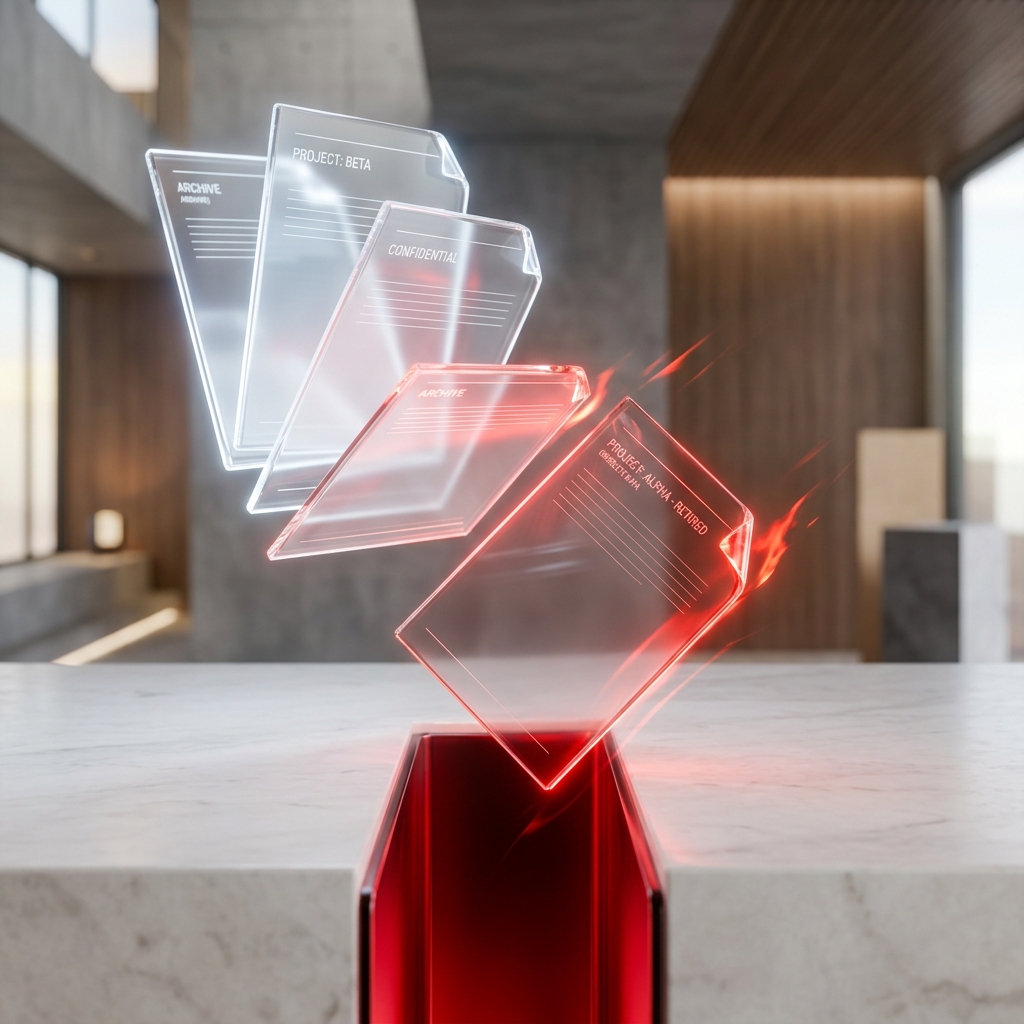
Large PDF documents often contain pages that are not needed, such as cover sheets, blank pages, duplicate pages, outdated appendixes, old forms, extra scanned pages, or confidential information. Sending a bulky PDF with irrelevant pages can look unprofessional and may make the document harder to read, upload, email, or print. A clean and properly edited PDF creates a better impression and helps the recipient focus only on the important content. This is where the Delete PDF Pages tool becomes very useful.
With Paper Knife Delete PDF Pages Tool, you can quickly remove unwanted pages from any PDF document and create a clean, lightweight, and professional file. Whether you want to delete blank pages, remove extra scanned pages, cut confidential sheets, or trim a long document before sharing, this tool makes the process simple and fast.
Why Delete PDF Pages?
Smaller File Size
Removing unnecessary pages can reduce the overall PDF file size. This is especially helpful when the PDF contains scanned images, graphics, forms, or high-resolution pages. A smaller PDF is easier to email, upload, download, and store.
Improved Readability
When a PDF includes only relevant pages, it becomes easier for the reader to understand the document. The recipient does not need to scroll through blank pages, duplicate pages, or outdated information. A trimmed PDF looks cleaner and more organized.
Better Professional Presentation
A PDF with unnecessary pages can look careless. Removing extra pages before sending a file shows that the document has been reviewed and prepared properly. This is important for business reports, resumes, assignments, invoices, proposals, contracts, and official files.
Confidentiality and Privacy
Sometimes PDF documents contain private or sensitive pages that should not be shared. These may include personal details, financial records, internal notes, signatures, addresses, IDs, or confidential business information. The Delete PDF Pages tool helps remove sensitive pages before sharing the final document.
How to Delete PDF Pages Online
Deleting PDF pages with Paper Knife is simple and beginner-friendly.
First, upload your PDF document to the Delete PDF Pages tool. After uploading, you will see a visual grid of all page thumbnails in your PDF. This makes it easy to identify which pages are blank, duplicate, outdated, or unnecessary.
Next, hover over the pages you want to remove and click the delete or trash icon. You can also type page numbers manually if you already know which pages should be deleted. After selecting the unwanted pages, confirm your selection and click Save PDF.
The tool will process your document and remove the selected pages. Once the process is complete, download your polished, compact, and updated PDF file.
Best Uses of Delete PDF Pages Tool
This tool is useful for students, teachers, office users, freelancers, business owners, job seekers, legal professionals, and personal users. Students can remove blank pages from assignments or scanned notes. Office users can delete outdated pages from reports and business documents. Freelancers can clean proposals and client files before sharing. Businesses can remove unnecessary pages from invoices, contracts, catalogs, and presentations. Personal users can delete extra pages from medical reports, bills, receipts, travel documents, and scanned records.
SEO Keywords for Delete PDF Pages Tool
Important SEO keywords for this page include delete PDF pages online, remove pages from PDF, PDF page remover, free delete PDF pages tool, remove blank pages from PDF, delete unwanted PDF pages, PDF page delete tool, trim PDF online, remove PDF pages free, edit PDF pages online, and Paper Knife PDF tool.
Conclusion
A Delete PDF Pages Tool is an essential online PDF editing feature for removing unwanted, blank, duplicate, outdated, or confidential pages from a PDF document. It helps reduce file size, improve readability, protect privacy, and create a cleaner final document. With Paper Knife, you can upload your PDF, select pages visually, delete unnecessary pages, save the updated file, and download a professional PDF within seconds. If you are searching for a free tool to delete PDF pages online, remove pages from PDF, trim PDF files, or clean PDF documents, Paper Knife provides a fast and convenient solution.
Ready to Process Your PDFs?
Use our high-speed, secure, and 100% free online PDF tools to convert, merge, compress, and edit your documents in seconds.
Explore All PDF Tools