How to Extract Text from a Scanned PDF Using OCR
Published on June 04, 2026
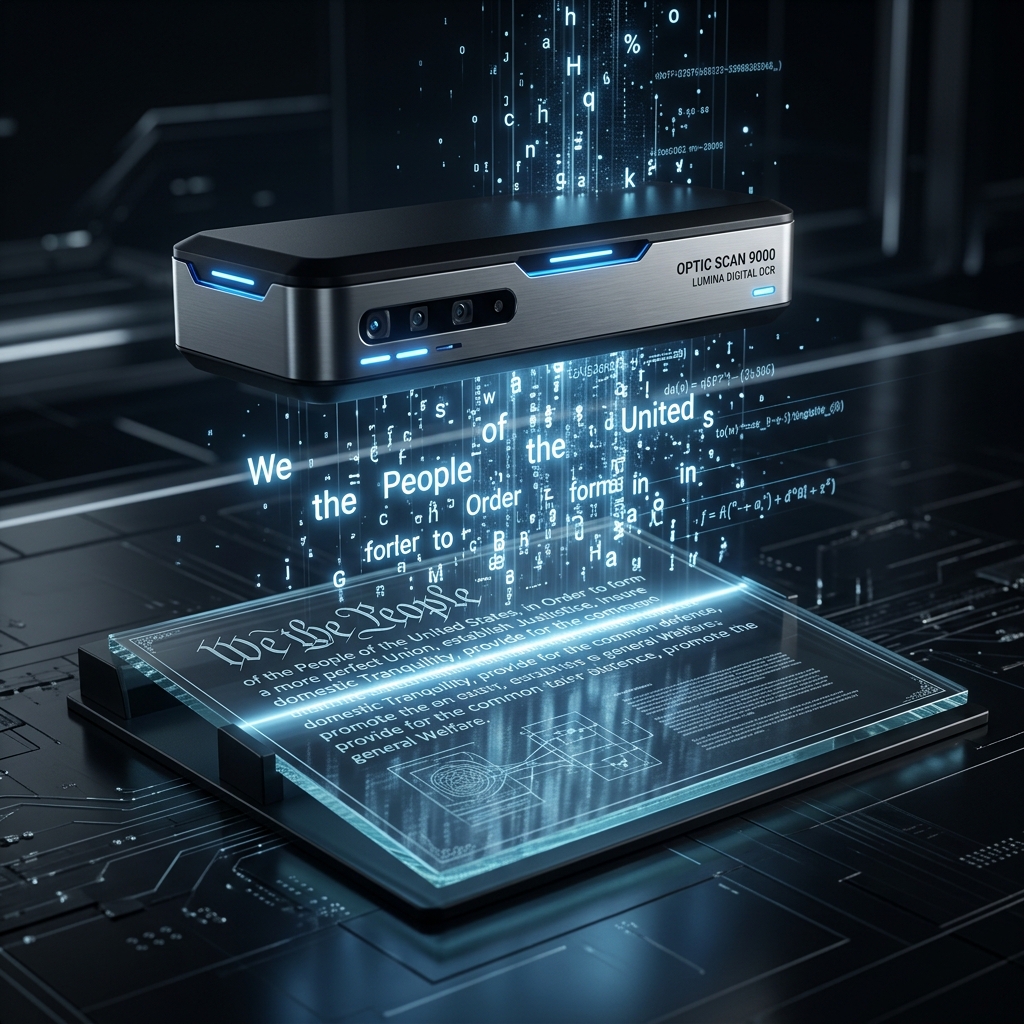
Have you ever received a scanned PDF document and found yourself frustrated because you couldn’t select, copy, or edit the text? This is where Optical Character Recognition (OCR) technology comes to the rescue.
What is OCR?
OCR, or Optical Character Recognition, is a smart technology that analyzes the visual layout of a scanned document, identifies individual letters and words, and converts them into editable, searchable machine text. It bridges the gap between physical paper and digital data.
Benefits of Extracting Text from Scanned PDFs
- Editable Content: Easily modify and reformat scanned reports without retyping everything.
- Searchability: Turn scanned PDFs into searchable archives so you can find keywords in seconds.
- Data Entry Automation: Quick copy-paste of tables, numbers, and clauses into spreadsheet or word files.
How to Convert Scanned PDFs to Editable Text
Using PDF Master Pro’s OCR tool makes text extraction easy:
- Select the PDF OCR Text Extractor tool.
- Upload your scanned PDF document or image file.
- Select the language of your document (e.g., English, Spanish, Hindi) for maximum recognition accuracy.
- Click "Extract Text". Our server’s OCR engine will analyze the document.
- Download your text file (`.txt`) containing all the recognized characters.
Pro Tips for Accurate OCR Results
Paper Knife To get the best possible text recognition, make sure the scanned document has high contrast, is not blurry, and is oriented upright. Low-resolution scans or pages with hand-drawn scribbles can sometimes result in small typographical errors.
Ready to Process Your PDFs?
Use our high-speed, secure, and 100% free online PDF tools to convert, merge, compress, and edit your documents in seconds.
Explore All PDF Tools